
How to Open a Private Window in Any Browser
A site that worked an hour ago now refuses to load. A page can also keep showing an old version of itself. Before you change any setting, run one quick test first. Learn how to open a private window, load the problem site inside it, and read what the result tells you.
The test takes under a minute and changes nothing on your computer. It works on Windows, on Mac, and on your phone. Every big browser has this mode built in, each under its own name.

What is a private window?
A private window is a fresh browser window that starts with clean hands. It holds no cookies from your past visits. It has no stored sign-in waiting to fill in. It sees an empty cache, so every file on the page loads fresh from the site.
Each browser gives it a different name. Chrome calls it Incognito. Firefox calls it a Private Window. Edge calls it InPrivate, and Safari calls it Private Browsing. Under the names, all four do the same job.

Think of it as a guest room inside your browser. Nothing from your daily browsing waits inside it. When you close it, the room empties itself and leaves your normal window untouched.
Why this test finds faults so fast
Most stubborn site faults live close to home. A broken cookie can trap a page in an error loop. An old cached file can clash with a new one. An extension can block a script the page needs.
A private window switches all three suspects off at once. Extensions stay off by default in this mode. Cookies and sign-ins start empty. If the site suddenly works there, you have found the fault zone without touching a single setting.
That is why support teams ask for this test first. One window answers a big question in under a minute. Is the fault in your setup, or is it somewhere else entirely?
How to open one, browser by browser
Pick your browser from the list below. It shows how to open private window mode in each one, on a computer and on a phone.
- Chrome on a computer: press Ctrl+Shift+N. On a Mac, press Command+Shift+N.
- Firefox on a computer: press Ctrl+Shift+P. On a Mac, press Command+Shift+P.
- Edge on a computer: press Ctrl+Shift+N. On a Mac, press Command+Shift+N.
- Safari on a Mac: click File, then New Private Window. The keys Command+Shift+N do it too.
- Chrome on a phone: tap the three-dot menu, then New Incognito tab.
- Safari on an iPhone: tap the tabs button, then tap Private.
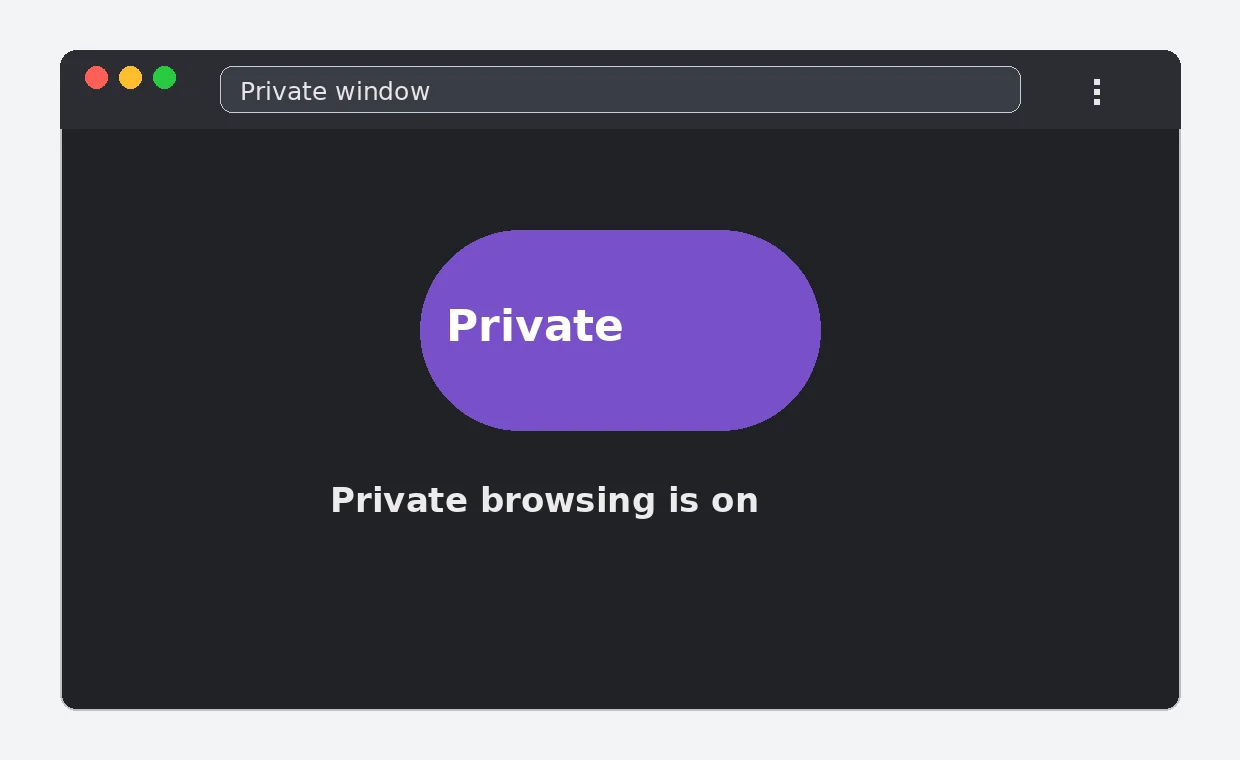
A dark screen or a purple badge tells you the private window is open. Now type the address of the problem site and load it the normal way. Menus hold the same commands if the keys slip your mind.
What does the result tell you?
If the site works in the private window, the fault sits inside your normal window. The cause is a cookie, a stored file, or an extension. The site itself is fine, and so is your connection. Nothing about the site changed between the two tries.
If the site fails in the private window too, the fault is wider than your browser setup. The problem then points at the site itself, your network, or a block between you and the site.
Read the pair of results together, not just the first one. A single private test sorts most faults into one of two boxes. The box decides your next move.
- Works in private: clear cookies and cache, then turn extensions off one by one.
- Fails in private too: test the site on your phone with Wi-Fi off. If it loads there, your home network is in the frame.
The limits of private mode
Private mode is a test bench, not a cloak. It does not hide you from your internet provider. It does not hide you from a workplace or school network. The sites you visit can still see your visit, just without your old cookies attached.
Signing in still works as normal, and sites can still tell that a real person arrived. What changes is only what your own device keeps after the visit ends.
Files you download in a private window still save to your device. Pages you bookmark still stay in your list. When you close the window, the browsing history and cookies from that session go away, and nothing more.
Your next step after the test
If the private window fixed the view, clear out the old data in your normal window. Our walkthrough to clear the cache in Chrome covers the steps browser by browser. A hard refresh is worth one try first, since it forces fresh files for a single page.
If the site failed in both windows, stop fixing your own setup. Check the live status page to see if other people hit the same wall right now. The guides library holds the next tests for that case, from router restarts to connection checks.
Either way, you now know where the fault lives before spending an hour on the wrong fix. That is the whole point of this small test.
Frequently Asked Questions
Does a private window delete anything on my computer?
No. Opening one changes nothing and removes nothing. It simply runs apart from your normal window, with its own short-lived cookies and history. Closing it clears only that session. Your normal history, cookies and files stay exactly as they were.
Why do my extensions stop working in a private window?
Browsers keep extensions off in this mode by default, so a test stays clean. You can allow one under the extension settings, but leave them off while you test a broken site.
Can I stay signed in inside a private window?
You can sign in as normal during the session. The window just starts signed out and forgets the sign-in when you close it. Nothing carries back into your normal window.
Does private mode make me anonymous online?
No. Your provider and the sites you visit can still see the traffic. Private mode only keeps your own device from storing the visit.
The site works in private but breaks again later. What now?
That pattern points at data your normal window keeps reusing. Clear the cookies and cache for that one site first. If the fault returns, turn extensions off one at a time until the page holds.