
Is My Internet Down? How to Tell in Minutes
One question comes first: is my internet down for real? The answer shapes your next move, because each fault needs a different fix.
This guide walks you through simple tests that sort a dead provider line from a single broken site. You need no tools, no account, and no technical skill for any of them. Each test below takes minutes and rules out one whole layer.
The pattern that gives it away
A line fault hits everything at once.
Every site fails, every app stalls, and every device in the home loses its connection in the same minute.
That shared failure is the strongest sign that the problem sits outside your rooms.
Timing matters as well, because line faults strike suddenly and hit every room together.
A single site fault looks very different. One page refuses to load while the rest of the web opens fine.
A single device fault looks different too, since the rest of the home stays online.
Slow speed at one busy evening hour is not a line fault either.
Three quick checks show the pattern fast.
- Open three unrelated sites on your phone.
- Ask another device in the home to load the same pages.
- Note whether the failures started at the exact same moment.

When all three answers point the same way, treat the line itself as the prime suspect.
What are the lights on your box telling you?
Your modem or router speaks through small lights on its front.
A steady power light shows the box itself runs fine.
The internet light matters most for this question.
Green or white there means the line talks to your provider.
Red, orange, or fully dark there points at the line, not at your rooms.
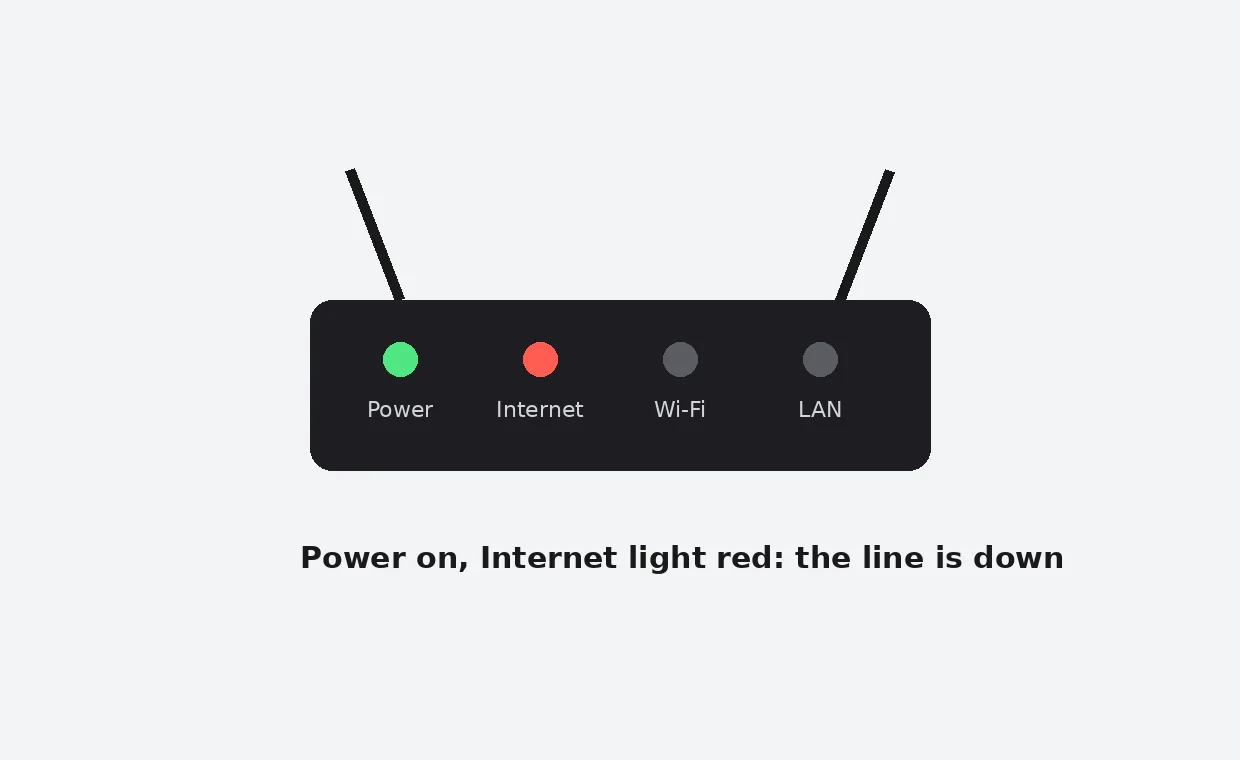
Your devices still connect to the box, yet nothing beyond the box answers.
Light names differ between brands, though the order stays the same.
Take a photo of the lights while the fault lasts.
Read the lights in this order.
- Power light first, to confirm the box has power.
- Internet or WAN light next, since that one reports the line.
- Wi-Fi light last, since it only covers the wireless side.
A lit power light beside a red internet light is the classic line-fault picture.
Take Wi-Fi out of the question
Wi-Fi adds its own faults, and they look like a dead line.
Weak signal, thick walls, and busy neighbours all slow or drop a wireless link.
A cable test removes that whole layer in one step.
Most routers ship with a short cable in the box.
Plug a laptop straight into the router with a network cable.
Turn the laptop Wi-Fi off, then open a few sites.
No laptop in the home? A games console or smart TV accepts a cable too.
Two results are possible here.
- Sites load on the cable, so your line works and Wi-Fi is the fault.
- Nothing loads on the cable either, so the fault sits past the router.
Write the result down, because support teams ask for it early.
Check your provider through mobile data
Provider faults rarely strike one home alone.
A broken line or a failed street cabinet takes a whole street or district down at once.
Your phone can confirm that in under a minute.
Turn your home Wi-Fi off on the phone first.
That step forces the phone onto mobile data, away from the suspect line.
Then open your provider’s own status page or app.
A fault notice naming your area settles the question at once.
No notice does not clear the provider, since fresh faults take time to appear.
A neighbour on the same provider gives the fastest local answer of all.
Street-level faults also explain why your mobile signal still works perfectly.
You can also check the live status reports for the services you use.
Reports from neighbours in the same streets carry real weight here.
The DNS fault that hides a healthy line
Sometimes the line lives while every address fails.
Your devices find sites through DNS, the directory that turns names into numbers.
When your provider’s DNS breaks, names stop resolving and pages refuse to load.
The internet light stays green through all of it.
Apps that already hold a connection often keep working.
Phone apps suffer the same way, since they look up names too.
Changing DNS settles the question fast.
Point one device at a public DNS service and test again.
Sites that suddenly load prove the line was healthy all along.
The full DNS change guide walks through the setting step by step.
Call support with facts in hand
A short, factual report gets a faster fix than a long complaint.
Before you call, note four things on paper.
- Which lights burn on the box, and their colours.
- The time the connection dropped.
- The cable test result, word for word.
- Whether neighbours on the same provider lost service too.
Hand those facts over in that order.
The agent can skip the basic script and test the line itself.
Ask for a fault reference number before you hang up.
That number ties later calls to the same case.
Keep the note beside the phone until service returns.
While you wait, the connection check guide helps you test your speed and signal.
A proper router restart also rules out a tired box before the engineer visit.
You can also watch the live status board while the engineer works.
More single-problem walkthroughs wait in the guides library for faults closer to home.
Frequently Asked Questions
How fast can I tell if my line is down?
Three checks take under five minutes. Watch the lights, test with a cable, then open your provider status page through mobile data.
My internet light is red but Wi-Fi looks fine. What does that mean?
Your box runs and your wireless works, yet the line into your home has failed. That pairing points at your provider, not at your devices.
One room keeps dropping while the rest works. Is that a line fault?
Almost never. A line fault hits the whole home at once, while one weak room points at signal strength or the router position.
Everything fails but the internet light stays green. What now?
Suspect DNS first. Change the DNS setting on one device, then test again; the DNS change guide shows each step.
Should I restart the router before calling support?
Yes, one proper restart clears a tired box and support will ask anyway. Wait half a minute between switching off and switching on.